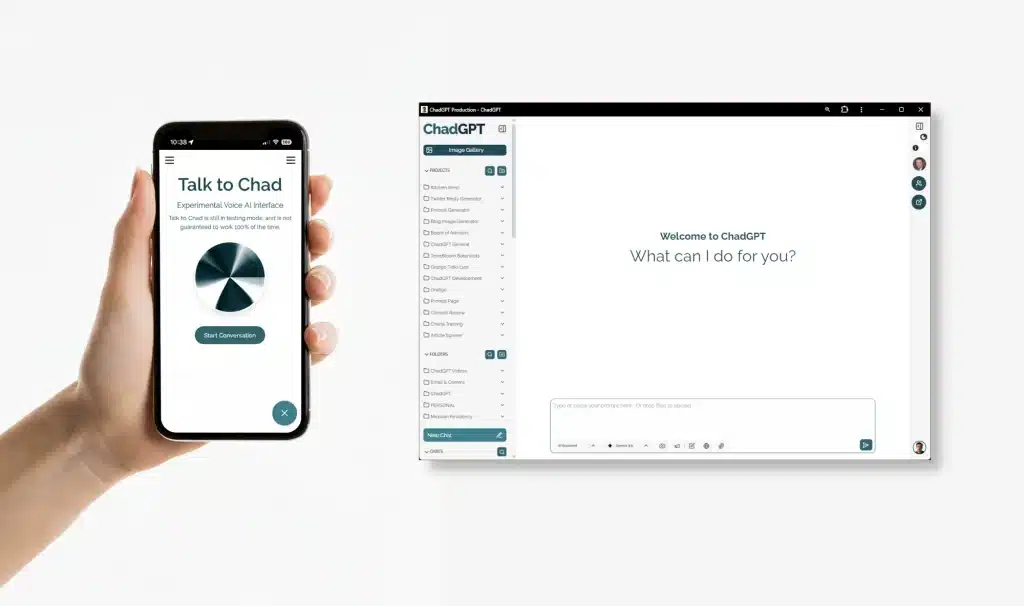
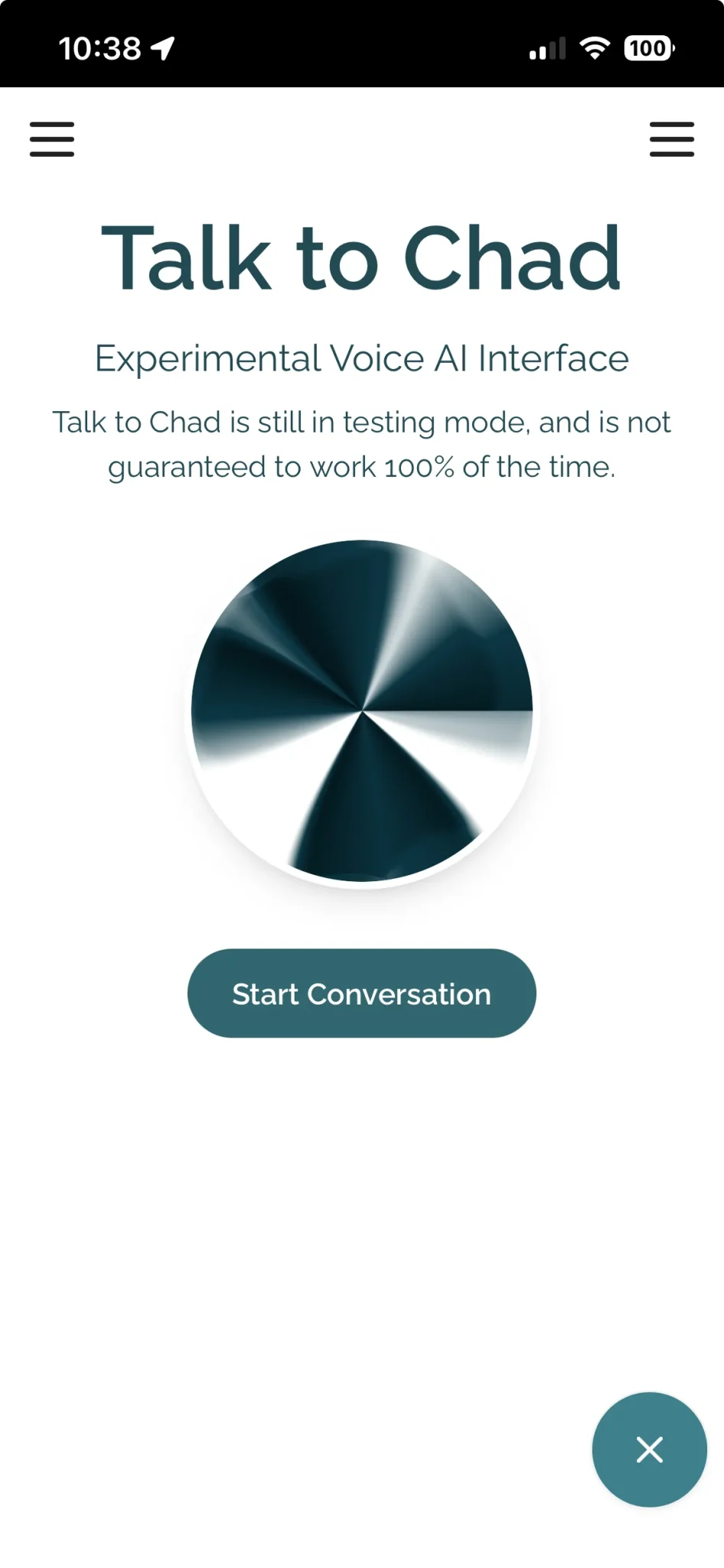
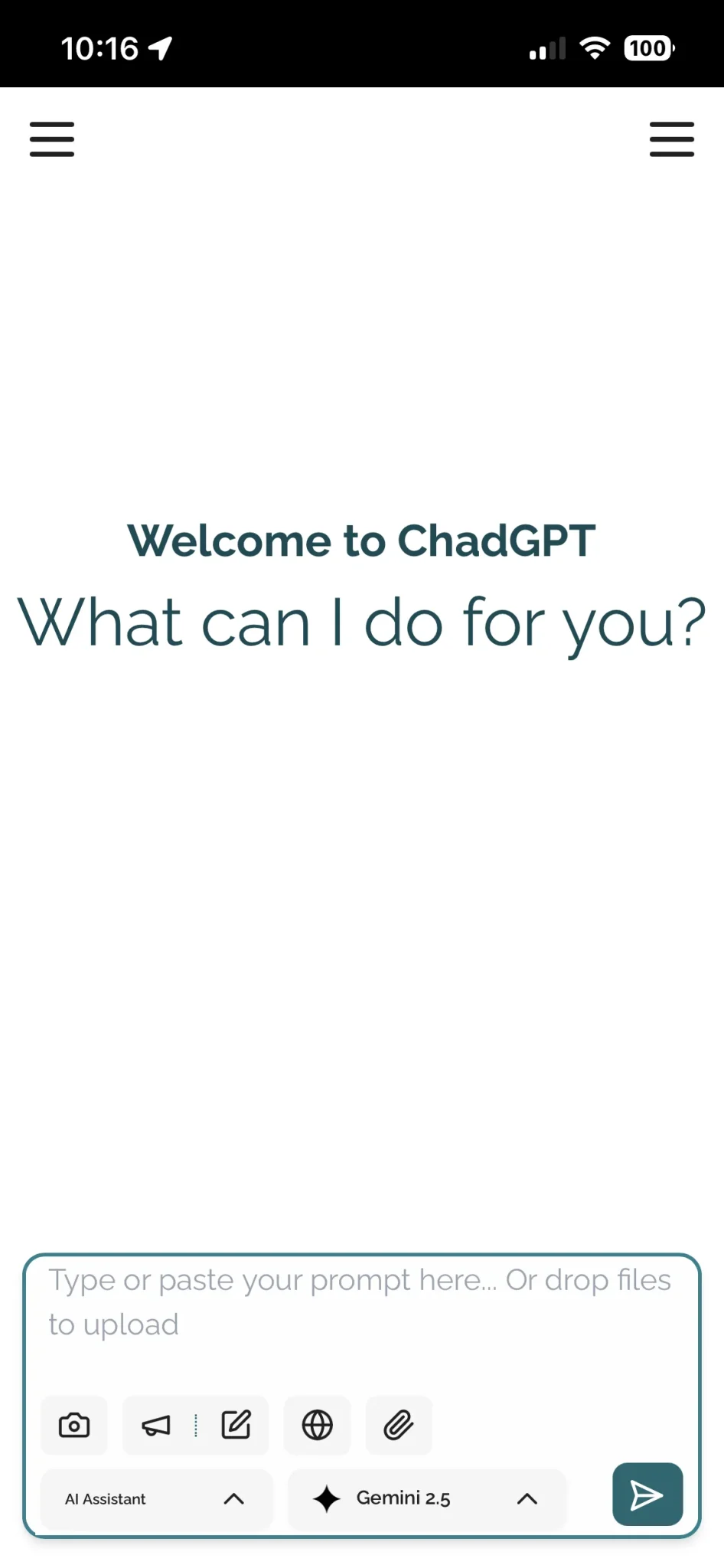
A full-featured AI interface for small-business (and teams of one). We combined over 10 cutting-edge AI models into one interface, so you can focus on your business, not the ever-changing AI landscape. Learn More>>
Tap the Share button (the square with an arrow pointing up) at the bottom of the screen.
In the share sheet, scroll down and tap Add to Home Screen.
Optionally change the name (we suggest “ChadGPT”). Tap Add.
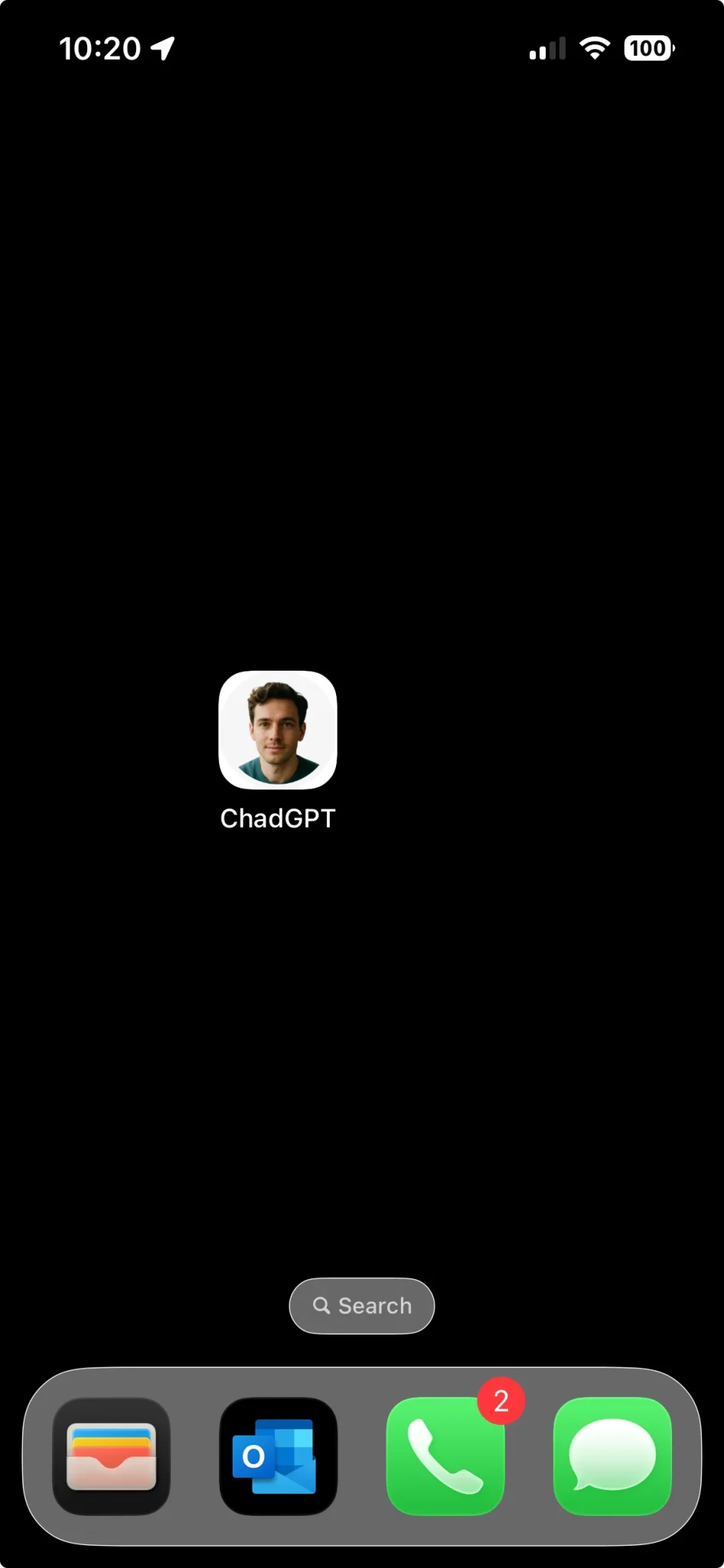
The icon appears on your home screen. Tap it to open like an app.
iPhone — If you prefer Chrome or other browsers
Important: On iOS only Safari reliably exposes the “Add to Home Screen / Web Clip” feature. If you’re in Chrome on iPhone and don’t see an Add option, open the same page in Safari and follow the Safari steps above.
If the site is a PWA, you may see a prompt like “Install” or an install icon in the address bar — tap that to install.
If no prompt appears: tap the three-dot menu (top-right) → tap Add to Home screen (or Install app).
Edit the name if you want, then tap Add.
The icon is added to your home screen. If it’s a PWA, it will open full-screen; otherwise it opens in Chrome.
Android — Firefox
Open Firefox and go to the site.
Tap the three-dot menu → look for Add to Home screen (sometimes under Page → Add to Home screen).
Confirm name and add. The shortcut appears on your home screen.
Android — Microsoft Edge
Open Edge and load the site.
Tap the three-dot menu → look for Install (or Add to phone / Add to Home screen).
Confirm to add.
Android — Samsung Internet
Open Samsung Internet and go to the site.
Tap the menu (three lines or three dots) → Add page to → Home screen.
Confirm and add.
How to remove the shortcut (if you ever want to)
iPhone: tap-and-hold the icon → Remove App → Remove from Home Screen (or Delete App on older iOS).
Android: tap-and-hold the icon → Drag to Remove/Uninstall (or tap App Info → Uninstall).
Troubleshooting & quick tips
No “Add” option? Make sure the page is loaded over HTTPS. Some browsers only show install for https and for sites that meet PWA criteria.
If it still won’t add, try refreshing the page or clearing browser cache.
If you want it to behave like a true app (offline, full-screen), we need a PWA manifest + service worker on the site. If you’re the owner and want help with that, we can write the manifest and service worker easily.
Name it “ChadGPT” and pin it to your main home screen so you don’t have to scroll—because micro-efficiency is our love language.
Short security/privacy note (because Chad cares)
Adding a web shortcut doesn’t share more or less data. ChadGPT keeps data on U.S.-based partners and does not sell or share your data.
💡 Got an Idea? Spot a Bug?
Don’t just bang on your keyboard, steer the future of ChadGPT instead:
Submit a bugs, or your feature ideas – and vote on all potential ChadGPT features
Hey, Chad here: I exist to make AI accessible, efficient, and effective for small business (and teams of one). Always focused on practical AI that's easy to implement, cost-effective, and adaptable to your business challenges. Ask me about anything; I promise to get back to you.
What is C2PA Metadata?
C2PA metadata is a tiny, invisible stamp tucked inside your image file that says, “Hey, an AI made this.” It comes from the Coalition for Content Provenance and Authenticity (C2PA), a group setting standards for transparency around digital content.
The good news?
🧹 It doesn’t change how your image looks.
🔍 You’d have to dig into the file metadata to even notice it.
🛡️ It helps fight misinformation without cluttering your webpage with ugly watermarks.
Bottom line: You get beautiful, clean images—with just a tiny invisible signature that keeps things honest.